 COME
COMEBefore Your First COME APK Install: A Practical Check
Before installing COME for the first time, check the page you reached and the file it offers. Opening a COME page, receiving an APK and installing an Android app are three separate stages.
Recognise the subject, then verify the source
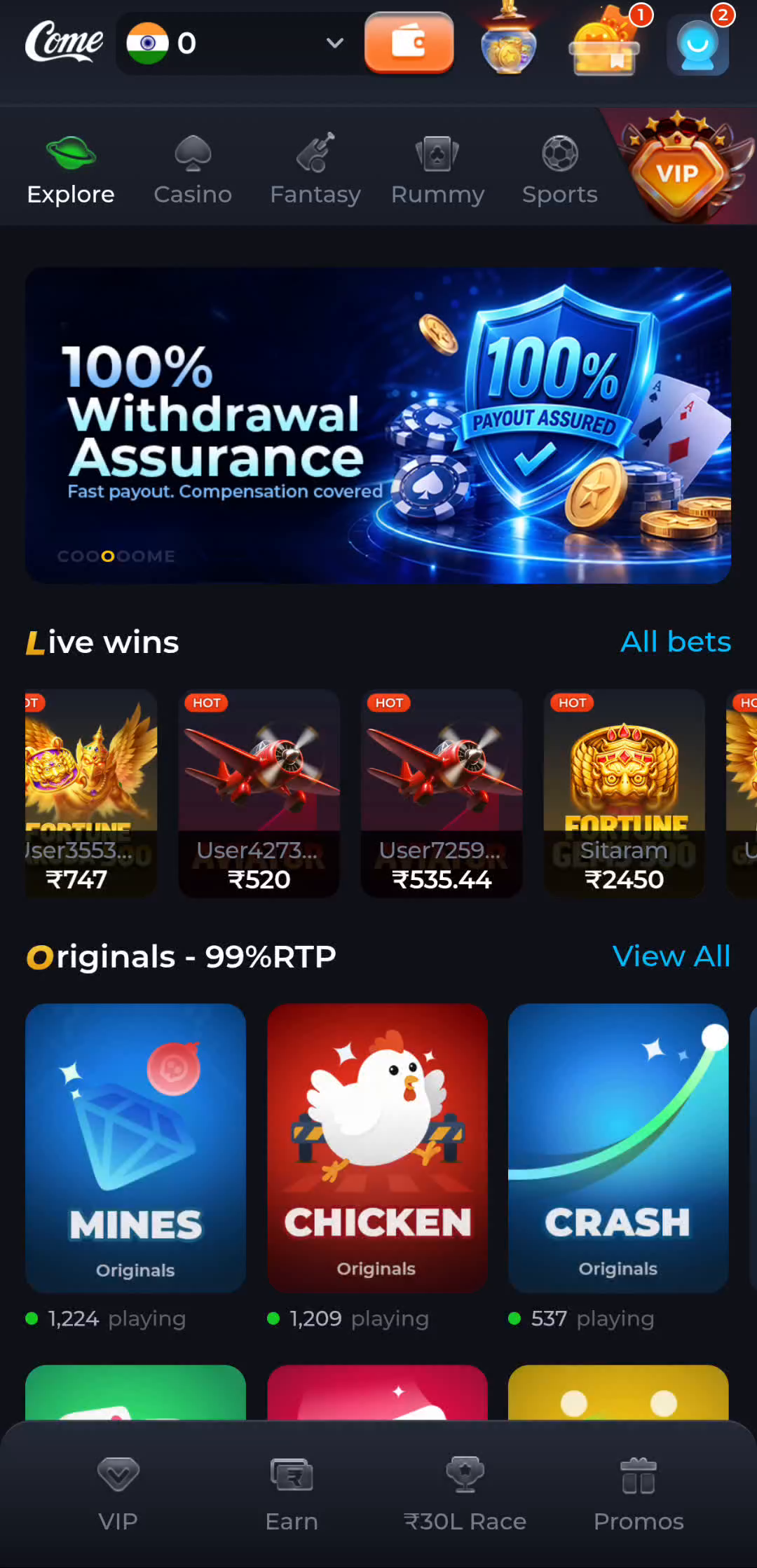
The pictured COME screen contains Explore, Casino, Fantasy, Rummy and Sports navigation. It helps explain the product interface, but matching artwork cannot authenticate a downloaded file. Read the destination address and app identity rather than relying only on familiar colours or a logo.
Prepare the phone
Use a connection you trust and check the available storage. Read the device requirements on the offered download before proceeding. The APK file size is not a promise of the total space an installed app will need. Keep access to any account you intend to use and avoid entering credentials into unrelated pop-ups.
Review each stage once
Open the app entry, identify the Android download option if one is available, and wait for the transfer to complete. Review the completed file in your browser or file manager before opening it. Read the installer name and prompts carefully; reaching the installer does not prove the file is authentic.
Treat a warning as information
Keep Google Play Protect enabled. If Android blocks or warns about the file, read the exact message and investigate it before proceeding. A restriction imposed by a work device or device administrator should be handled through the person responsible for that phone.
Check the outcome
After a completed installation, open the app from Android and check that its app information is present. If you only see a browser page, return to the download stage instead of assuming installation happened. A sign-in problem after opening is a different task from installing the file.